Installing Mods in Custom Locations
By default, ME3 Manager installs mods into your local app data folder. However, you might want to store your mods elsewhere—perhaps on a larger drive or to keep your system organized.
This guide covers two ways to achieve this: creating a custom profile or using external mod folders.
Default Location
The default mod path is usually %LOCALAPPDATA%\garyttierney\me3\config\profiles\.
Choosing Your Method
Depending on your needs, you can move an entire profile's mod directory or simply "link" specific mods from other locations.
This is the recommended method if you want to move all mods for a specific profile to a new drive.
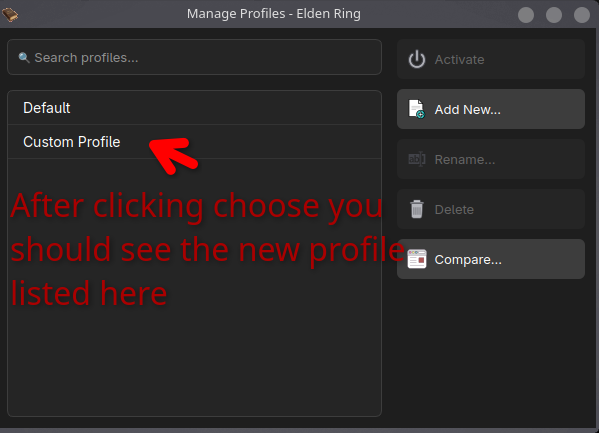
- Open Profile Manager: Click on the current profile name in the main toolbar and select Manage Profiles....
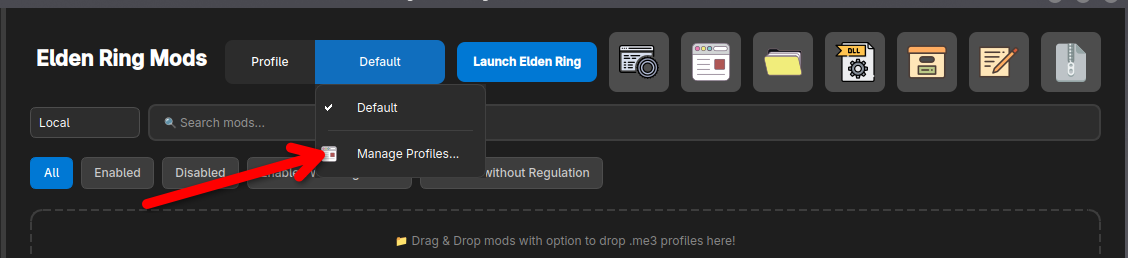
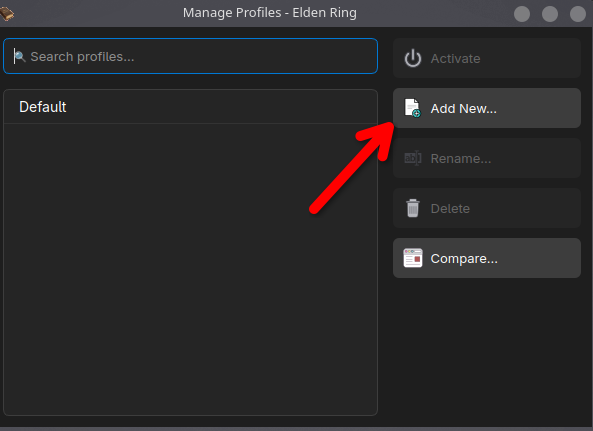
- Add New Profile: Click the Add New... button in the sidebar.
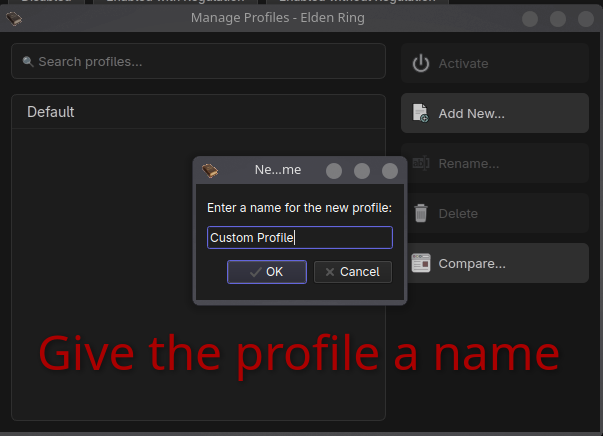
- Set Name: Enter a name for your profile (e.g., "Custom Profile") and click OK.
- Select Custom Path: A file browser will appear. Navigate to your desired location and click Choose.
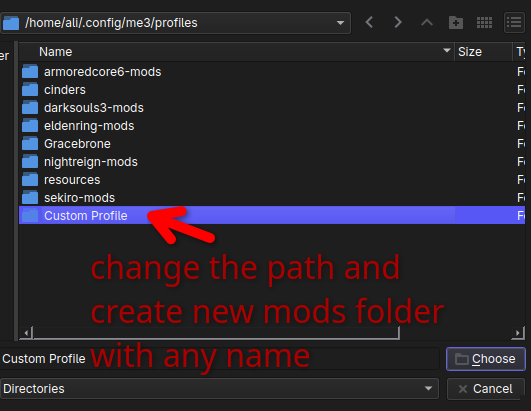
- Finish: Your new profile is now created and will store all its mods in the selected directory.
Use this if you have specific mods located elsewhere that you want to reference in your current profile without moving them.
External Native Mods
For mods that use native file overrides (e.g., .dll files).
- Click the External Native Mod (DLL icon) button in the toolbar.
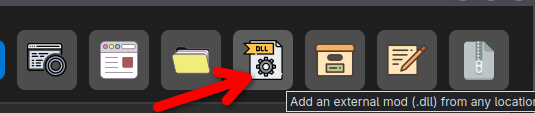
- Select the mod file (e.g.,
SoulsChat.dll) and click Open.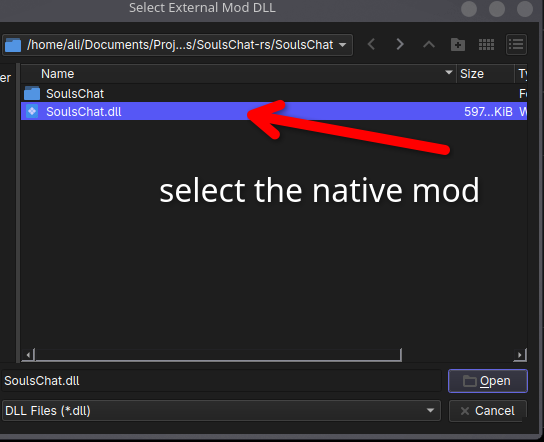
- The mod is added to your list with an "E" badge, indicating it is an external reference.

External Package Mods
For mods packaged as folders or archives.
- Click the External Package Mod (Folder icon) button in the toolbar.
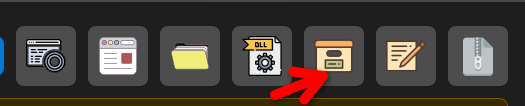
- Select the package folder or file and click Choose.
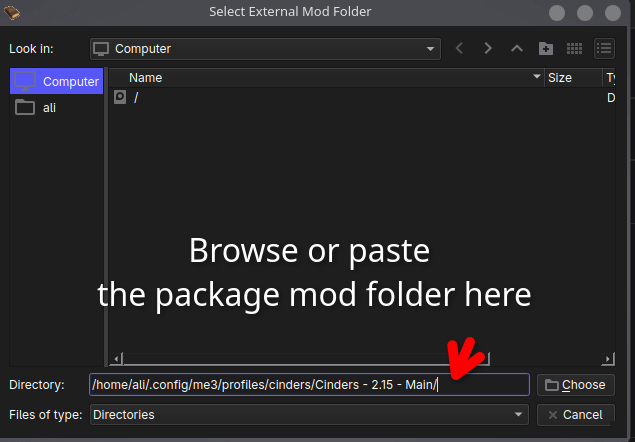
- The package is now linked to your profile, also marked with an "E" badge.

Which one should I use?
- Option 1: Custom Profile — Recommended if you want to store all your mods for a specific profile in a location outside the default folder (e.g., on a larger secondary drive).
- Option 2: External Mod Folders — Best for sharing the same mod files across multiple profiles without duplicating them. This is also useful if you have already downloaded a mod and want to link it directly to the manager instead of downloading or moving it again.